Test an MCP Server’s Tools with the Inspector
Verify that your MCP server’s tools, resources, and prompts work correctly before agents depend on them. The Inspector runs on the same JSON-RPC connection agents use, so a passing test means fewer failed tool calls in production. Use the Inspector after creating a server or whenever you change a tool’s schema.
After completing this guide, you will be able to:
-
Run an MCP tool from the Inspector and read its response
-
Inspect a server’s resources, prompts, and session activity
-
Diagnose common errors (missing authentication, scope upgrade required, transport mismatch) before pointing an agent at the server
When to use the Inspector
-
After creating or registering a server, to confirm tool discovery completed and tools run correctly.
-
While iterating on a self-managed server, to test schema changes against a live connection.
-
When debugging an agent failure, to isolate whether the issue is in the agent or in the MCP server itself.
A tool call that succeeds in the Inspector settles three questions together. The server’s tool definitions loaded, so discovery worked. The gateway reached the system behind the tool, so the network path works, and the system accepted the credentials the server uses. When a call fails, the error tells you which of the three broke: a transport or connection error is the path, an OAuth or credential error is the credentials, and an input validation error is the schema. See Common errors.
Open the Inspector
-
Open MCP servers in the sidebar and click your server.
-
Click the Inspector tab.
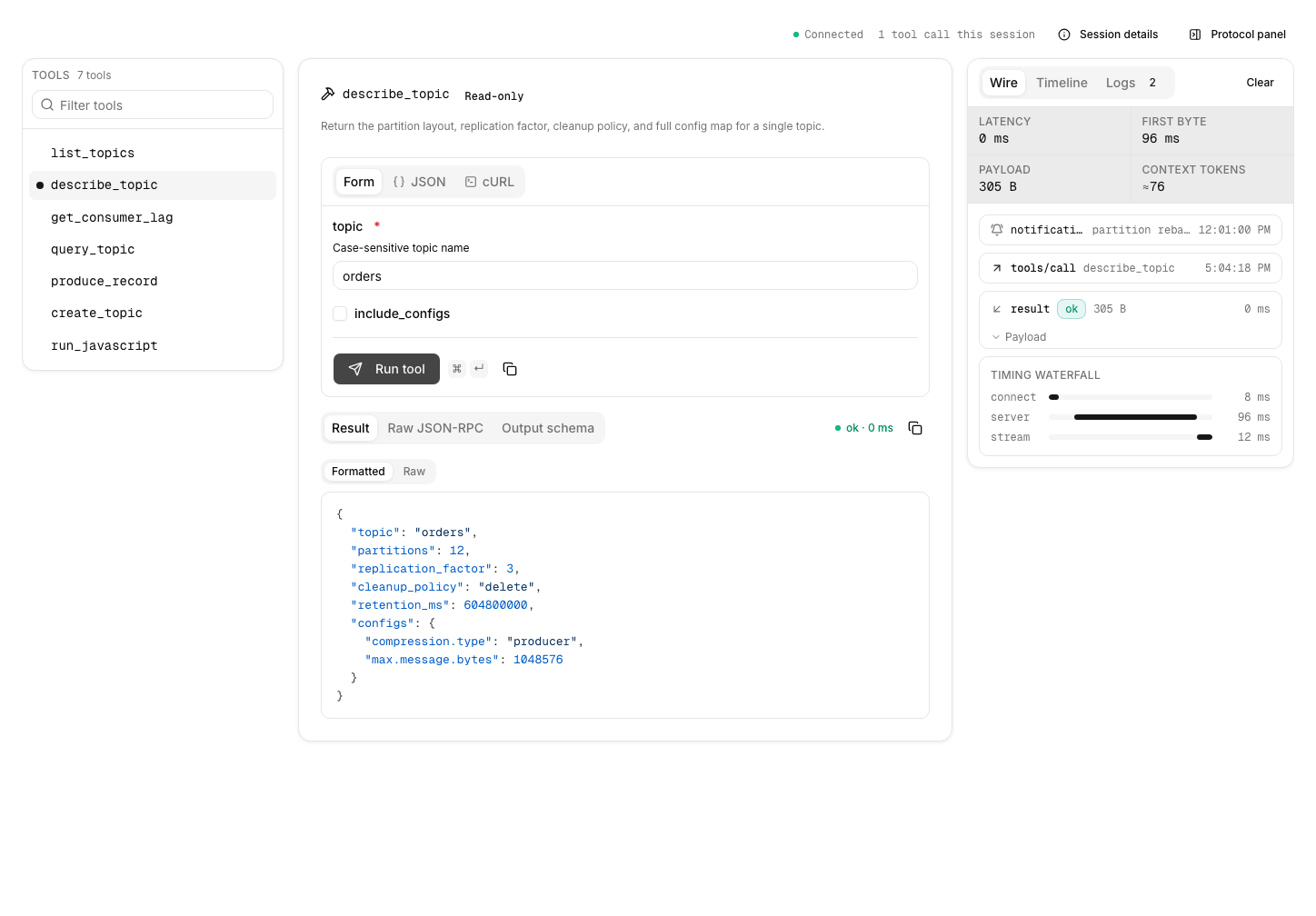
The Inspector is a console. A tool list and a tool runner sit side by side, with a status strip along the top. Resource and prompt panels appear underneath only when the server exposes those capabilities. Two more surfaces open from the status strip: Session details and the Protocol panel. See Review session and protocol details for both.
You call one tool at a time in the runner, with input you write yourself. Selecting a different server clears the input you typed, the last result, and the session history.

Run a tool
The tool list shows every tool the server returned from tools/list. When a server exposes more than one tool, a filter box narrows the list by tool name, title, or description, and shows a count of how many tools match. Long tool names wrap in full instead of being cut off.
-
Click a tool in the list to load it into the runner. The runner shows the tool’s input and, after you run it, its response.
-
Provide the tool’s input using one of the input modes:
-
Form: A field-by-field form generated from the tool’s input JSON schema.
-
JSON: The raw JSON input, for pasting or editing a whole object at once.
-
cURL: A ready-to-run
curlcommand for the call, with a copy action.
-
-
Click Run tool, or press Ctrl+Enter (Cmd+Enter on macOS). While the call is in flight, a progress bar reflects any progress the server reports, and you can Cancel it.
The response appears in a tabbed result card:
-
Result: The tool’s output. Toggle between Formatted (pretty-printed JSON) and Raw (the exact response text).
-
Raw JSON-RPC: The reconstructed request and response envelopes, with the method and parameters exactly as the server sees them.
-
Output schema: The tool’s declared output schema, shown when the tool provides one.
A status indicator reports whether the call succeeded and how long it took. Copy actions let you copy the input, the output, or the JSON-RPC envelope. If the tool returns an error, the result card shows the structured error detail. See Common errors for what each common error means.
Answer a server’s input request
While the Inspector holds a session to the server, a server can ask for input in the middle of a call. The request appears as a Server needs input card below the status strip, with the server’s own message, the request number, and a reminder that your answer goes to that server. The call waits until you answer it.
-
A form request lists the fields the server asked for. Required fields are marked, and submitting with one missing or invalid reports the problem on the field instead of sending. Click Send response to answer, or press Enter.
-
A URL request offers Open secure page, which opens the server’s page in a new tab, and Continue once you’re done there. The Inspector refuses a URL it can’t verify.
Click Decline to refuse the request, or Cancel to drop it. Both stay available while a response is being checked, so a slow answer never locks you in. If the server asks again later in the call, a new card appears.
Code-mode tools
If the server has code mode enabled, the AI Gateway also serves a code-mode endpoint, the server URL with a -code suffix, with two tools, search and execute. Code mode does not add tools to the server’s own tool list. To try search and execute, run rpk ai mcp-server tools call <server-name> search --code-mode or connect an MCP client to the code-mode URL. See Code Mode.
Inspect resources
When the server exposes resources through resources/list, a Resources panel appears below the runner. Many MCP servers don’t expose resources at all: if there’s no panel, that’s fine.
If your server does expose resources:
-
Click a resource to load its content into the pane.
-
The Inspector renders text, JSON, and binary types differently; for a binary payload, it reports the size and tells you to decode the content with a client SDK.
Inspect prompts
When the server exposes prompt templates through prompts/list, a Prompts panel appears below the runner. Prompt templates are parameterized prompts an agent can invoke by name. As with resources, many servers don’t expose prompts.
If your server does expose prompts:
-
Click a prompt to render its template.
-
Fill in any required parameters in the rendered form.
-
Click Preview messages to see the rendered prompt content.
Review session and protocol details
The status strip along the top of the console reports the connection status and how many tool calls you have made this session, and carries two controls.
The connection status reads Connected, Connecting, or Disconnected while the Inspector holds a session to the server. It reads On demand when the Inspector is not holding an open session, in which case each call opens its own short-lived connection instead.
Session details opens a side panel with the session’s connection health, negotiated capabilities, and protocol editions. Use it to confirm the Inspector connected and to see which capabilities (tools, resources, prompts) the server advertised.
Protocol panel opens a panel beside the runner with three views. The control and the panel need a wide window, so neither appears on a narrow screen. The Inspector remembers whether you left the panel open.
-
Wire: The JSON-RPC request and result frames for your recent calls, interleaved with any notifications the server sends. Expand a frame to read its payload. When the gateway reports timing detail, a waterfall splits the most recent call into its connect, server, and stream phases. A large result payload isn’t kept here; read it in the result card instead.
-
Timeline: The tool calls, resource reads, prompt previews, and pings from this session, each with its result and how long it took.
-
Logs: Log lines the server sends over MCP logging, newest first, with a count beside the view name.
Above the views, a telemetry strip reports the last call’s latency, time to first byte, payload size, and estimated context tokens. Click Clear to empty every view at once.
Common errors
| Error | Meaning and fix |
|---|---|
|
The user-delegated authentication path has no stored token for the calling user. The failed tool result carries the authorization URL. Complete the consent flow per User-delegated OAuth, then run the tool again. |
|
The stored token is expired and refresh failed. Reconnect through Connections. |
|
The upstream provider rejected the stored credential for your account (for example, with a 401): the connection may have expired, been revoked, or had its access removed. The error message includes an authorize URL; reconnect the provider, then retry the call. |
|
The user’s connection lacks one of the server’s |
Transport / connection error |
The Inspector can’t reach the upstream. The Overview tab and the Inspector tools list show the discovery error. For self-managed servers, verify the URL and transport choice. |
Tool input validation error |
The form’s input doesn’t match the tool’s schema. The error message includes the offending field. Update and re-run. |
Test from the CLI
Use rpk ai for the same tool calls outside the UI, when scripting smoke tests or running checks from CI.
# List every tool exposed by a server
rpk ai mcp-server tools list <server-name>

# Call a tool with a JSON arg blob
rpk ai mcp-server tools call <server-name> <tool-name> --args '{"arg1":"value"}'

# Get server detail, including the discovered tool list
rpk ai mcp-server get <server-name>
The command targets the AI Gateway of your selected Agentic Data Plane environment, using credentials from rpk ai auth login. See Connect your app to AI Gateway for installation and sign-in.
