Agentic Data Plane Quickstart for Agent Builders
This quickstart takes you from zero to a working agent: you sign in, explore the agents your organization already runs, then build your own that turns a natural-language question into a real API call. By the end, you have an agent you can test, tune, and share with your team.
Redpanda Agentic Data Plane is Redpanda’s platform for running and governing AI agents on your streaming data. For the bigger picture, see the Agentic Data Plane overview.
After reading this page, you will be able to:
-
Find and evaluate the agents that already run in your organization
-
Build an agent that combines an LLM provider with tools from an MCP server
-
Test, iterate on, and verify agent behavior with the Playground and Transcripts tabs
Prerequisites
|
Before you build, your organization needs a large language model (LLM) provider configured. If your administrator has already set one up, continue. If not, or you’re not sure, complete the administrator quickstart first, then come back. It’s a one-time setup. |
-
Access to Agentic Data Plane at ai.redpanda.com. If you can’t sign in, ask your administrator for an invitation.
-
Access to create agents and MCP servers. Your administrator grants this with an access policy, or with a custom role where policies aren’t enabled yet. The Writer and Reader roles don’t cover Agentic Data Plane. If a create button is disabled or a save returns a permission error, ask them to check what applies to you or your group.
-
At least one LLM provider configured in your organization.
What you build
You create the following Agentic Data Plane resources, in order:
-
PetStore MCP server. Exposes the public Swagger PetStore API as a set of MCP tools the agent can call. PetStore is a public demo API with no authentication, so you can focus on the flow instead of credentials.
-
Pet store assistant agent. Combines your organization’s LLM provider and the MCP server so a natural-language question becomes a real API call against PetStore.
After the agent works, you replay one of its runs turn-by-turn on its Transcripts tab, then learn how to swap the demo API for a system your team actually uses.
Sign in and look around
Sign in to Agentic Data Plane at ai.redpanda.com. You land on the Home page. It shows items that need your attention, recent gateway traffic, month-to-date spend and token totals, budget status, and quick actions for common tasks. Start every task in this guide from the sidebar.
Explore existing agents
Before you build anything, see what already exists. Your organization may run agents you can use or learn from.
-
In the sidebar, open Agents. The agent registry lists every agent in your organization with its status.
-
Select an agent to open its detail page. The tabs give you a complete picture of the agent:
-
Settings: The agent’s full configuration, as one editable form, including its model, system prompt, and tools.
-
Triggers: Schedules and event sources that invoke the agent.
-
Playground: An interactive chat surface for testing the agent.
-
Cost & Usage: The agent’s budget status and its spend and request volume, broken down by LLM provider.
-
Transcripts: A record of the agent’s conversations, at the level of detail set by its transcript recording mode.
-
Permissions: Who can act on the agent and what the agent can access.
-
-
(Optional) Open the Playground tab of an existing agent and send it a prompt to see how it behaves.
If an existing agent already covers your use case, you can stop here and use it. Otherwise, continue to build your own.
Create an MCP server with a public OpenAPI spec
The OpenAPI managed MCP server type takes any OpenAPI 3.x spec URL and generates one MCP tool per operation. You point it at the public Swagger PetStore, which exposes a small pet-inventory API with no authentication.
|
PetStore is a public demo that Swagger hosts for testing and is occasionally unavailable. Before you start, open the spec URL in your browser. If it doesn’t return JSON, wait a few minutes and retry; PetStore usually recovers quickly. Checking now saves you from debugging your agent later for an upstream outage that isn’t your fault. |
-
In the sidebar, open MCP servers and click Add MCP server.
-
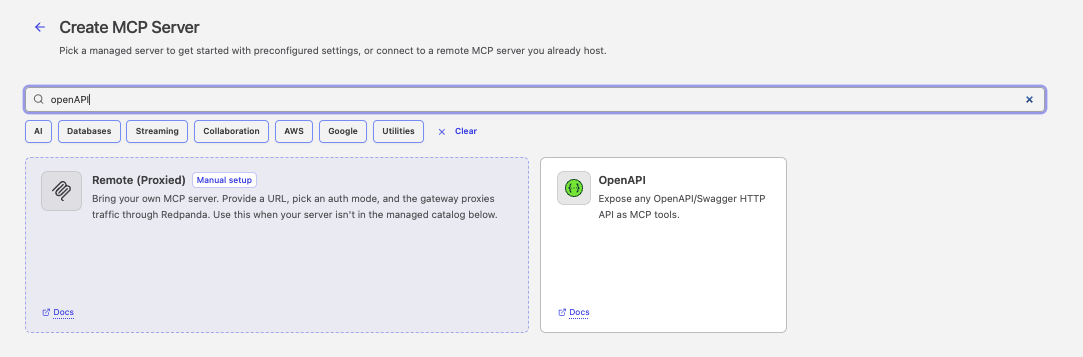
Search for and select the OpenAPI card from the marketplace picker.
-
Name: Replace the suggested name withpetstore-quickstart. -
Description: EnterPublic PetStore API exposed as MCP tools for quickstart testing. Optional, but helps you find the server later. -
Turn off the
Enable code modetoggle. It’s on by default for OpenAPI servers. Code mode serves a separate endpoint with two tools, search and execute, that let agents run sandboxed JavaScript against the server’s tools. The PetStore catalog is small enough that you don’t need it for this quickstart. -
Leave the Output format section at its defaults.
-
Spec: Enterhttps://petstore3.swagger.io/api/v3/openapi.json. -
Base URL: Leave blank. The PetStore spec already declares the rightserversblock, so no override is needed. -
Skip all other optional configuration fields.
-
For the authentication mode, select
No Auth. PetStore is a public API. -
Click Create server.
-
Redpanda fetches the spec, parses it, and generates one MCP tool per operation. After the server is created, its detail page opens.
-
On the Connection tab, copy the
Server URL. MCP clients use this URL to connect to the server. -
Open the Inspector tab. Redpanda runs a live
tools/listagainst the server and lists every tool it discovered. Confirm the list includesfindpetsbystatus,getpetbyid,findpetsbytags, andaddpet. The OpenAPI MCP server lowercases tool names when it generates them from the spec’soperationIdvalues.The exact tool count depends on the operations defined in the spec at fetch time. A populated list confirms the connection works. If the list is empty or the tab shows an error, see OpenAPI MCP troubleshooting.
For the full OpenAPI MCP reference (authentication modes, operation filters, base URL overrides), see OpenAPI managed MCP server.
Build your agent
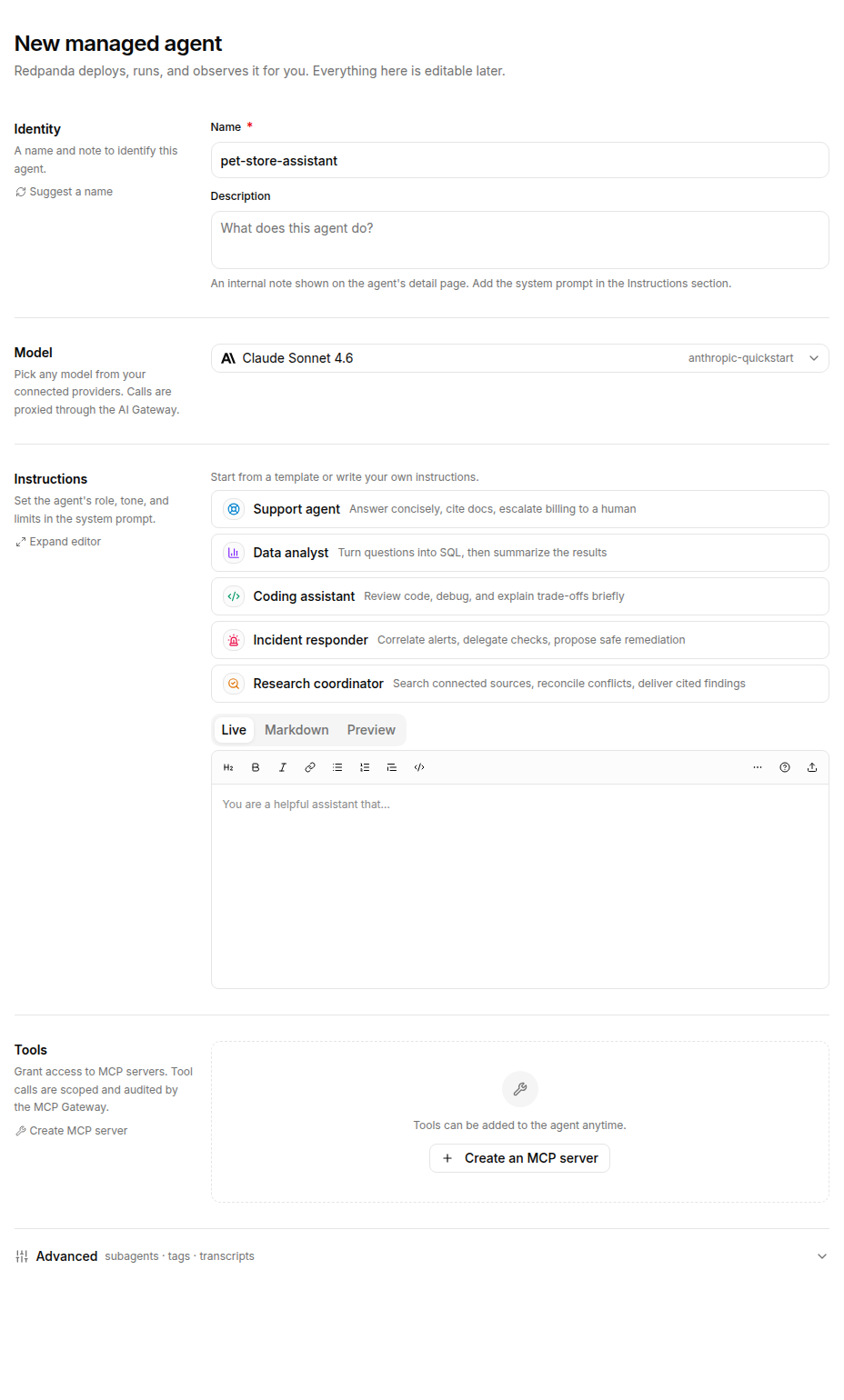
Combine your organization’s LLM provider and the PetStore MCP server into an agent. Agentic Data Plane configures a managed agent on a single canvas titled New managed agent, with sections for Identity, Model, Instructions, and Tools, plus a collapsible Advanced area for subagents, tags, and transcript recording. The canvas prefills a suggested name and the first available model, so review both before you create the agent. For the full reference, see Create an agent.
-
In the sidebar, open Agents.
-
Click Create agent.
-
Choose how the agent runs. Click
Managed by Redpanda, so Redpanda deploys, runs, and observes the agent for you.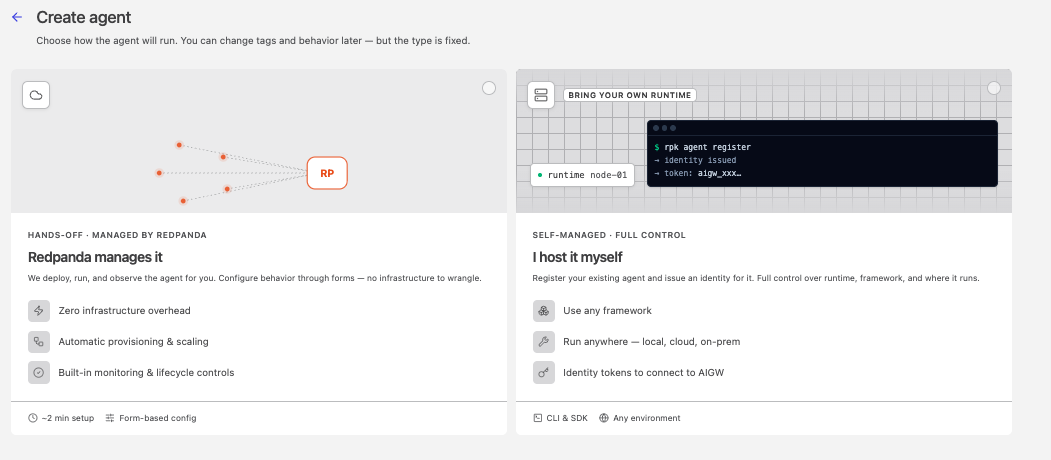
The other option, Self-managed, registers an agent you run on your own infrastructure. This quickstart uses the managed runtime. -
On the New managed agent page, in the Identity section, set the following:
-
Name: Replace the suggested name withpet-store-assistant. This name appears in the agent registry list and the detail header. Agentic Data Plane derives the agent’s resource ID from it when you create the agent; you don’t enter the ID directly, and it can’t be changed after creation. -
Description: EnterQuickstart agent that answers questions about the PetStore inventory.
-
-
For Model, open the picker, search for
claude-sonnet-4-6, and select it. The list may show the model by its display name, such as Claude Sonnet 4.6, rather than its ID. This model handles multi-step tool use reliably, which is what an agent needs. The picker is a single searchable list of the models enabled on your organization’s providers, with the provider that serves each model shown next to it. Selecting the model also selects its provider; for this quickstart that’s theanthropic-quickstartprovider your administrator configured. When more than one provider serves the same model, each pairing is its own entry, so pick the one that namesanthropic-quickstart. If the picker is empty, no provider exists yet; ask your administrator to complete the administrator quickstart.These names assume the Anthropic provider from the administrator quickstart. If your organization configured a different provider, pick any model it offers that supports tool use. -
For Instructions, paste in the following system prompt:
You are a pet store inventory assistant. You have access to PetStore API tools through MCP. Use them to answer questions about pets. The most useful read tools are: - findpetsbystatus: List pets by status (available, pending, sold) - getpetbyid: Look up a specific pet by ID - findpetsbytags: Search by tag Rules: - Always call a tool before answering. Don't make up pet data. - After each tool call, summarize what the tool returned and cite the tool name in your response. - If a tool fails or returns no data, say so and stop. Don't retry with invented IDs. - Stick to read operations for this quickstart. Don't add, update, or delete pets. -
For Tools, click Add a server and select
petstore-quickstartin the list that appears. A check mark appears next to it. Use the search field above the list if you want to find it by name, then close the list. (Don’t click Create MCP server in the Tools section header, or Create an MCP server… in that same list. Either builds a new server, and you already have one.) The agent discovers the server’s tools at runtime; you don’t pre-select individual tools, and the system prompt’s "stick to read operations" rule constrains behavior. You can change this list at any time. -
Leave the Advanced area collapsed. The quickstart uses a single agent with no subagents or tags, and the default transcript recording.
-
Click Create agent. If the button is disabled, the helper text next to it tells you what’s missing, such as a name or a model.
-
The agent opens on its Settings tab. Wait for the agent status to change from
StartingtoRunning.
Test the agent in the Playground
The Playground tab is a chat surface for the agent. Type a prompt into the input at the bottom of the page and click the paper-plane icon in the input’s bottom-right corner to send. Each prompt creates a Task card in the conversation that walks through the agent’s execution turn-by-turn: TaskStatusUpdate entries (Submitted → Working → Completed) with token counts, individual tool-call cards showing the tool name and latency, and an Artifact card holding the final response. Clear context (at the bottom of the input) resets the conversation between tests. The earlier conversation stays in Session history, where you can reopen it. See Reopen a past session.
-
On the agent detail page, open the Playground tab.
-
Send the first prompt:
What pets are available right now?The agent calls
findpetsbystatuswithstatus=availableand returns a summary of the pets, naming the tool. This PetStore endpoint is occasionally flaky; if it returns an HTTP 500, retry the prompt. -
(Optional) Send an open-ended prompt to confirm multi-step reasoning:
Find a pet tagged "friendly" and tell me whether it's available.The agent may call
findpetsbytagsfirst, thengetpetbyidfor one of the matches, then summarize.
If the agent hallucinates data instead of calling a tool, tighten the system prompt’s "Always call a tool before answering" rule. See system prompt best practices for patterns.
If a tool card shows an HTTP 500 error and the Artifact apologizes about the pet store API being unavailable, that’s the public Swagger PetStore being intermittently down. The agent is behaving correctly (the "if a tool fails, say so and stop" rule in the system prompt is what produced the apology). Retry the prompt; PetStore usually recovers within a few minutes.
For a table that maps what the Playground shows to what to do about it, see Read the Playground.
Iterate on your agent
Agent configuration isn’t fixed after you create it. Edit the system prompt or model, save, and re-test in the Playground to see how behavior changes.
-
On the agent detail page, open the Settings tab. The tab shows the agent’s full configuration as one editable form.
-
In the Instructions section, adjust the prompt to change how the agent responds. For example:
-
Add a constraint:
Never call more than one tool per response. -
Change the output format:
Always format pet details as a bulleted list. -
Add a confirmation step:
Before answering, restate which tool you plan to call and why.
-
-
Click Save changes in the bar at the bottom of the page.
-
Open the Playground tab, click Clear context, and re-send one of the earlier prompts to compare the agent’s behavior against your change.
For system prompt patterns and anti-patterns, see Write effective system prompts.
Break it on purpose
This exercise is optional. Seeing the agent fail teaches more than seeing it succeed. Remove the rule that keeps it honest, watch what changes, then put the rule back.
-
On the Settings tab, in the Instructions section, delete the line
Always call a tool before answering. Don’t make up pet data.and click Save changes. -
Open the Playground tab, click Clear context, and send
What pets are available right now?again. -
Watch the Task card. Without the rule, the agent may answer with no tool-call card at all and a plausible list of pets that the PetStore API never returned. If it still calls the tool, ask something the tools can’t answer, such as
Which pet is the most popular this month?, and watch whether it invents an answer or says it doesn’t know. -
Put the line back, click Save changes, clear the context, and send the same prompt. The tool-call card returns, and the answer cites the tool name, as the prompt’s rules ask.
An agent’s honesty comes from its instructions, not from having tools available. The Playground shows the difference as a missing tool-call card. For what else to look for there, see Read the Playground.
See what your agent did
By default, every conversation with the agent is recorded as a transcript you can replay turn-by-turn. Your Playground tests are already there.
The Chat view and the tool arguments and results depend on the agent’s transcript recording mode. A new agent records full transcripts by default, so the message text is there. If the agent is set to Metadata only, transcripts keep the conversation timeline, tool names, latency, and token usage, but no message or tool content. If it’s set to Off, the Transcripts tab stays empty.
|
-
On the agent detail page, open the Transcripts tab. The tab lists the agent’s recent conversations, one row per conversation, with the conversation, the user it ran for, its start time, duration, turn count, status, and token total.
-
Select the conversation from your Playground test.
-
Toggle between the two views:
-
Chat: Shows the user-visible exchange as a conversation.
-
Detailed: Adds per-turn metadata: latency, LLM and tool call counts, input and output token totals, and each tool call with its status and duration. Click a tool call to see the arguments it was given and the result it returned.
-
The Detailed view is where you verify the agent did what you asked: which tools it called, what it passed them, and what came back. See what your agent did covers transcripts in full.
Make it real
PetStore proves the flow. To build something your team uses, swap the demo API for a real system:
-
In the sidebar, open MCP servers and click Add MCP server.
-
Pick a type from the marketplace picker that matches a system your team uses, such as Slack, Jira, or a SQL database. See the managed MCP catalog for every type Redpanda hosts, with links to setup guides.
-
Configure its authentication. Unlike PetStore, real systems need credentials: an API key stored as a secret, or per-user OAuth. Some authentication modes need one-time setup from your administrator; see Set up authentication.
-
Add the new server to your agent’s Tools section, and update the system prompt to describe the new tools and rules.
Your own API works too: if it has an OpenAPI 3.x spec, the same OpenAPI server type you used for PetStore exposes it as tools. See OpenAPI Managed MCP Server.
Use your agent beyond the UI
Your agent isn’t limited to the Agentic Data Plane UI. After it’s running, you can reach it and its tools from other software:
-
Surface your MCP tools in a chat client like Claude Desktop or ChatGPT: Connect Remote MCP Clients
-
Call the agent from your own application over its A2A endpoint: Connect to the agent
-
Let the agent respond in Microsoft Teams: Trigger Agents
Clean up
If this was a one-off exercise, delete the resources you created so builders in your organization can’t keep using them.
-
Delete the agent (
pet-store-assistant) first. Open the agent, click the Settings tab, click Delete in the Delete this agent section, and typedeleteto confirm. -
Delete the MCP server (
petstore-quickstart). Open the server’s Overview tab, click Delete in the Delete this MCP server section, and typedeleteto confirm.
Leave your organization’s LLM provider alone. It’s a shared resource that other builders use.
